


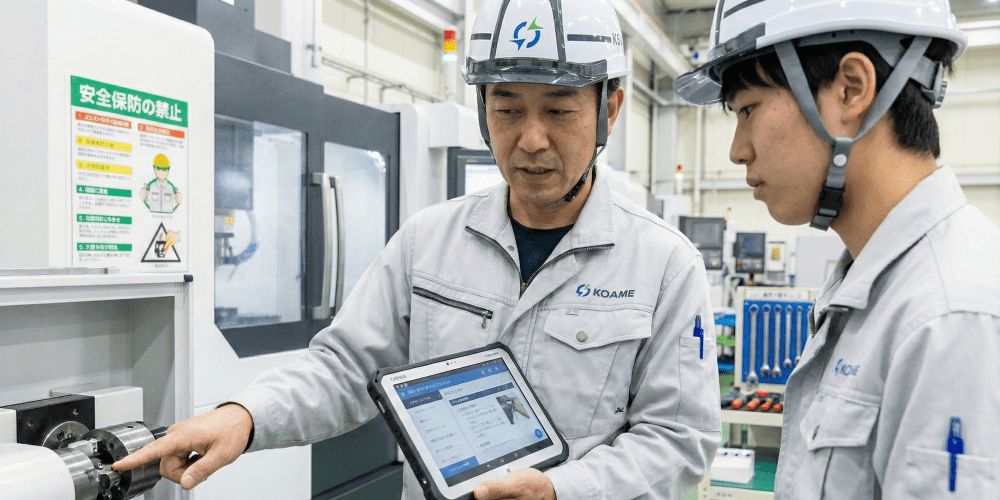



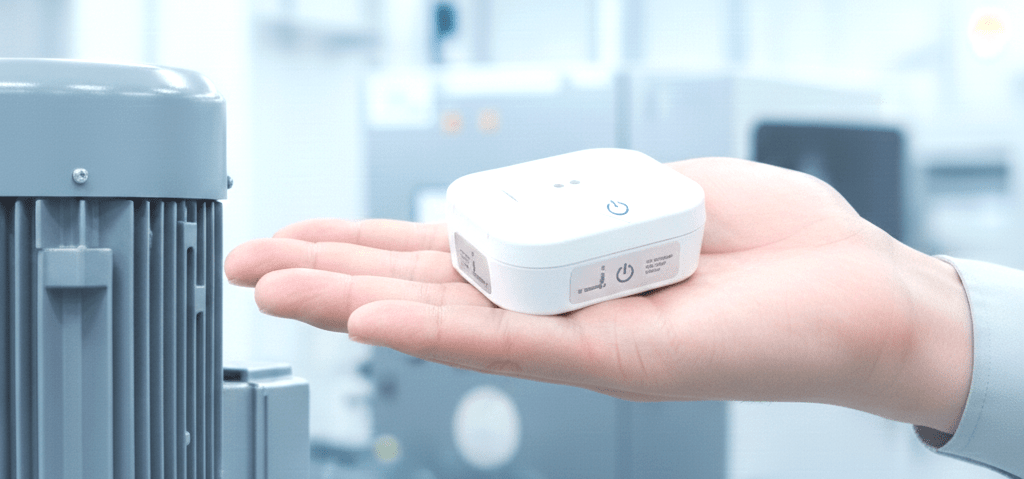
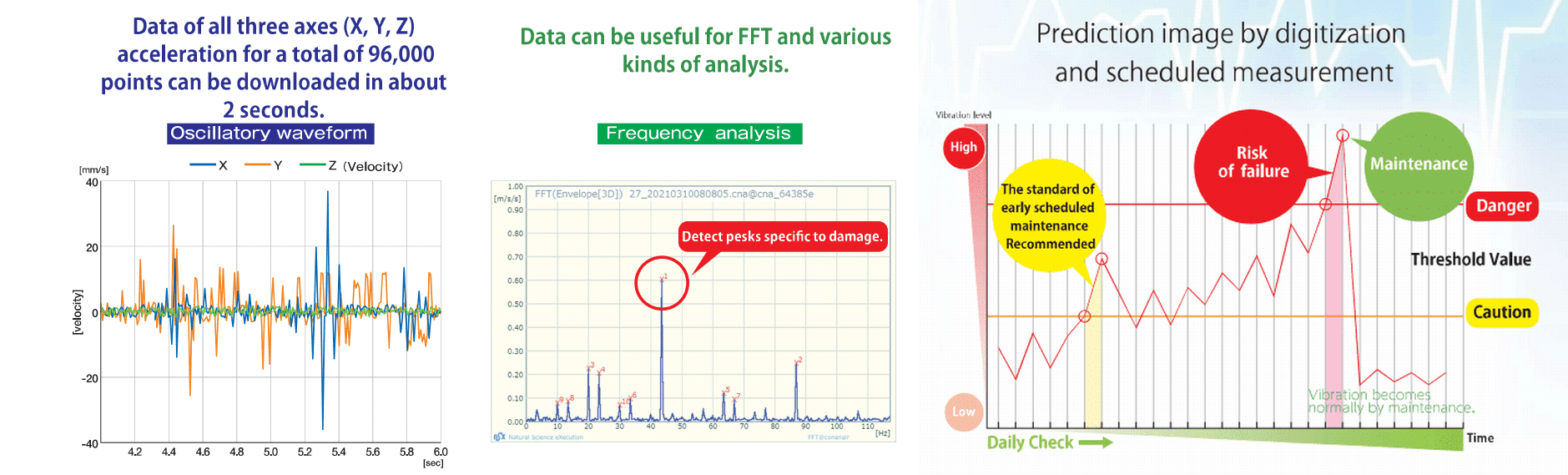
We explain setup methods and measurement procedures while looking at the actual conanair app screen. Check the overall flow with the video.
conanair is equipped with two operating modes, "Manual Mode" and "Automatic Mode," which can be selected according to your operational style and site environment. It is also possible to operate these two modes mixed within the same network environment. Before watching the initial setup and operation guide videos, please first confirm which mode corresponds to your operation.
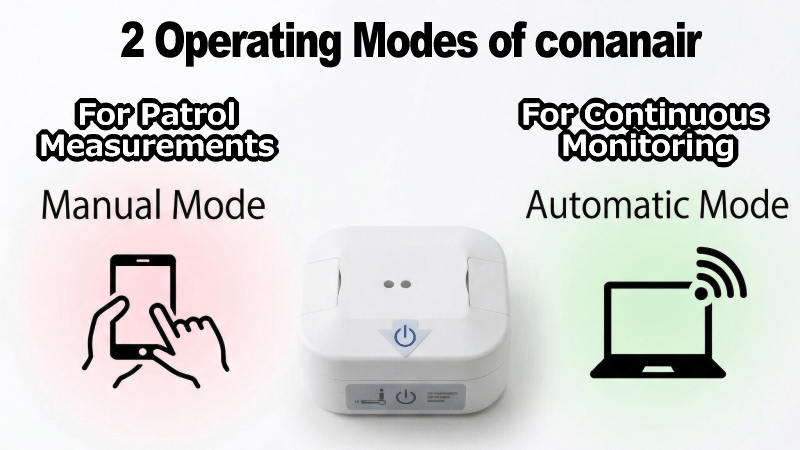
This is a mode in which workers carry the conanair unit and a smartphone (or tablet, PC) to perform spot measurements while patrolling equipment at the site.
This is a mode in which conanair is permanently installed on each target equipment, and measurement and data transmission are automatically performed at preset intervals.
This is the basic operation for "Manual Mode" to measure vibration on the spot like a listening stick. We explain setup methods and measurement procedures while looking at the actual conanair app screen.
0:04: Manual mode procedure list
0:09: Powering on the Conanair unit
0:17: Connecting to Wi-Fi access point with PC or tablet
0:43: Connecting to Conanair operation screen via Web browser
0:55: Selecting measurement point and starting measurement
1:28: Checking measurement results after 10 seconds
1:35: Displaying graphs, changing display range, etc.
This is the setup procedure for 24/7 automatic monitoring. It is explained in detail in 4 video steps. This video explains how to measure vibration in automatic mode with the Wi-Fi vibration sensor "conanair".
| Company Name | NSXe Co.Ltd - Nakayama Hydrothermal Industry Co., Ltd. |
|---|---|
| Head Office | 7686-10 Hirano-cho, Suzuka, Mie513-0835, Japan zip code 513-0835 |
| Phone | +81-90-2189-1398 |
| FAX | +81-59-379-4704 |
| Business Hours | 8:00~17:00 |
| Office Regular Holiday |
Saturday afternoons, Sundays and public holidays |
| URL | https://conanair.com/ |
| Company Name | NSXe Co.Ltd - Nakayama Hydrothermal Industry Co., Ltd. |
|---|---|
| Head Office | 7686-10 Hirano-cho, Suzuka, Mie513-0835, Japan zip code 513-0835 |
| TEL | +81-90-2189-1398 |
| FAX | +81-59-379-4704 |
| Business Hours | 8:00~17:00 |
| Office Regular Holiday |
Saturday afternoons, Sundays and public holidays |
| URL | https://conanair.com/ |